Commands in the File menu are used to manipulate and configure Kill Step Report files.
File Menu Commands:
| 4) | Save |
| 7) | Close |
| 8) | Exit |
.png)
New (Kill Step Report)
Step 1: Kill Step Report Setup
| 1) | On the File menu, click New. and the Kill Step Report setup is displayed. |
.png)
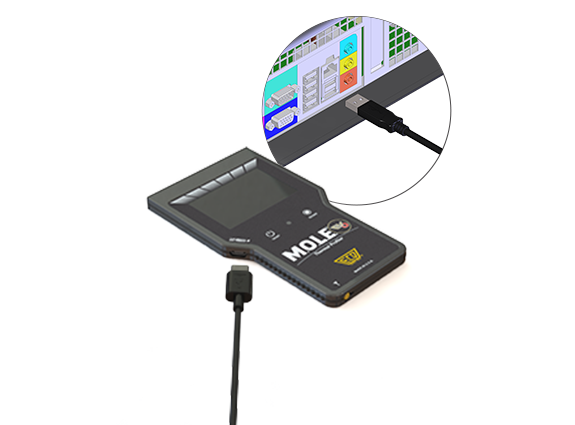
| 2) | Connect your M.O.L.E. to the computer. |
|
Software automatically detects when a M.O.L.E. is connected to a computer. The status is displayed in the Status bar.
|
.png)
.png)
.png)
| 3) | Select your food variety from the drop down box. |
.png)
| 4) | Save the New Report by selecting the browse button and navigating to a location where the Kill Step Report files (.KILL) are to be saved. |
|
When saving files it is recommended to have them in a consistent location and appropriately name the folder/file per variety, oven line and other pertinent data in a consistent way. |
.png)
| 5) | After providing a new file name select the Save command button. |
|
Software allows you to replace existing Kill Step Report files. This will however, destroy the data in the existing Report file. |
| 6) | Select the Next command button. |
.png)
Step 2: Profile(s) Management
| 1) | Select a check box next to at least one M.O.L.E. profile and then the Download button to continue. |
|
The software allows the ability to download multiple data runs at one time. Click the check box next to each data run that you want to download. |
.png)
.png)
|
This activity incrementally adds dough thermocouple channel data to what becomes a valid Kill Step Report. |
.png)
| 2) | The profile data is then loaded into the profile data management window where data from the downloaded profiles is accumulated. |
|
Reference profiles are displayed for all profiles currently downloaded to this Kill Step file. The active Kill Step File and Food Variety are shown In the profile rows, channel color sequence repeats (1-6 CakeOMETER™ | SuperM.O.L.E.™ Gold 2 or 1-3 if V-M.O.L.E.™), and individual channel D-Reduction and Max-Temp validation data is reported. |
.png)
|
AIB International's Kill Step Protocol for most product varieties calls for a total of 30 channels of data (6 individual dough pieces profiled 5 times in a given oven). Please reference the AIB website for details contained within their official Procedures documentation. Link: https://www.aibinternational.com/inspections-consulting/baking/kill-step-validation/ |
| 3) | If more profiles are needed, select the Add Profiles command button to reach the required number of valid channel profile rows. Monitor current channel count in the Progress Counter. As the count progresses, the background gradually becomes green as the value reaches 30 channels of profile data. |
Step 3: Report Generation:
| 1) | When there is enough temperature profiles for a report, select Generate Report button and the current report is displayed. |
.png)
| 2) | Select the Print button to continue and the Print Management window is displayed. |
.png)
| 3) | Select the Print button to continue or Close to not print the Kill Step Report. |
.png)
This command can be accessed on the Toolbar.
|
New button |
.png "Open Working Directory button")
Open (Kill Step Report)
To open a Kill Step Report:
| 1) | On the File menu, click Open. |
| 2) | Navigate to the location where the Kill Step Report file (.KILL) is located and select the desired Kill Step File. |
.png)
| 3) | Click the Open command button to load the file. |
This command can be accessed on the Toolbar.
|
Open button |
.png "Open Working Directory button")
Open Sample Kill File
To open the sample Kill Step Report:
| 1) | On the File menu, click Open Sample KILL File. |
| 2) | View a full Profile Collection and Generate a Report. |
.png)
Save
To save the current report:
| 1) | On the File menu, click Save and the current Kill Step Report file will be saved. |
This command can be accessed on the Toolbar.
|
Save button |
.png "Save Data Run button")
User Variety Manager
To add a user food variety:
| 1) | On the File menu, click User Variety Manager. |
|
This process can be exited at any time clicking the X icon at the top right corner the dialog box. |
| 2) | Select the Add command button. |
.png)
| 3) | Enter the food variety name and all of the required variables from your data. |
.png)
| 4) | Select the Save command button. The user food variety is now available in the Select Food Variety list. Refer to Topic Workspace & Menu Commands>New (Kill Step Report) or Quick Start Guide>Kill Step Report Set-up for more information. |
To edit a user variety:
| 1) | On the File menu, click User Variety Manager. |
| 2) | Select a food variety from the list and then select the Edit command button. |
.png)
| 3) | Edit the food variety name and/or variables. |
.png)
| 4) | Select the Save command button. The edited user food variety is available in the Select Food Variety list. |
To delete a user variety:
| 1) | On the File menu, click User Variety Manager. |
| 2) | Select a food variety from the list and then select the Delete command button. |
|
Deleting a user food variety is permanent and cannot be restored. |
.png)
| 3) | Select the Yes command button to continue, or No to quit and retain the food variety. |
Preferences...
|
These preferences are applied to the open Kill Step Report and is visible once the report is generated. |
To set preferences:
| 1) | On the File menu, click Preferences. |
.png)
| 2) | Select the Temperature Units. The selected temperature units for this kill step report. |
| 3) | Enter information about the facility or bakery: Name (The name of this facility or location) and Facilitator (The name of person performing this kill step process). |
| 4) | Enter information about the product being baked: SKU (The unique ID or number for the product being baked) and Notes (Notes and comments relative to this kill step report). |
| 5) | Enter information about the oven: Type, Make, Model (The oven model or description) and Settings (The oven temperature and bake time settings). |
| 5) | Click the OK command button to save the preferences and close the dialog box. |
Close (Open Kill Step Report)
|
This command is available only when a Kill Step Report is open. |
To close a Kill Step Report:
| 1) | On the File menu, click Close. |
Exit
The Exit command closes the software program.
To exit the program:
| 1) | On the File menu, click Exit to quit the software program. |